Accessing Student Hub
Student Access
Admitted students (future and current) have access to Student Hub through their NetID and password. Prospective students or students who have left UNM and no longer have an active UNM login can create a prospective student profile to connect with advisement until they are officially admitted/readmitted. Resources for using Student Hub are available here.
Employee Access
If you work in an area that is not yet using Student Hub, please contact shconnect@unm.edu to discuss goals, process, and timeline.
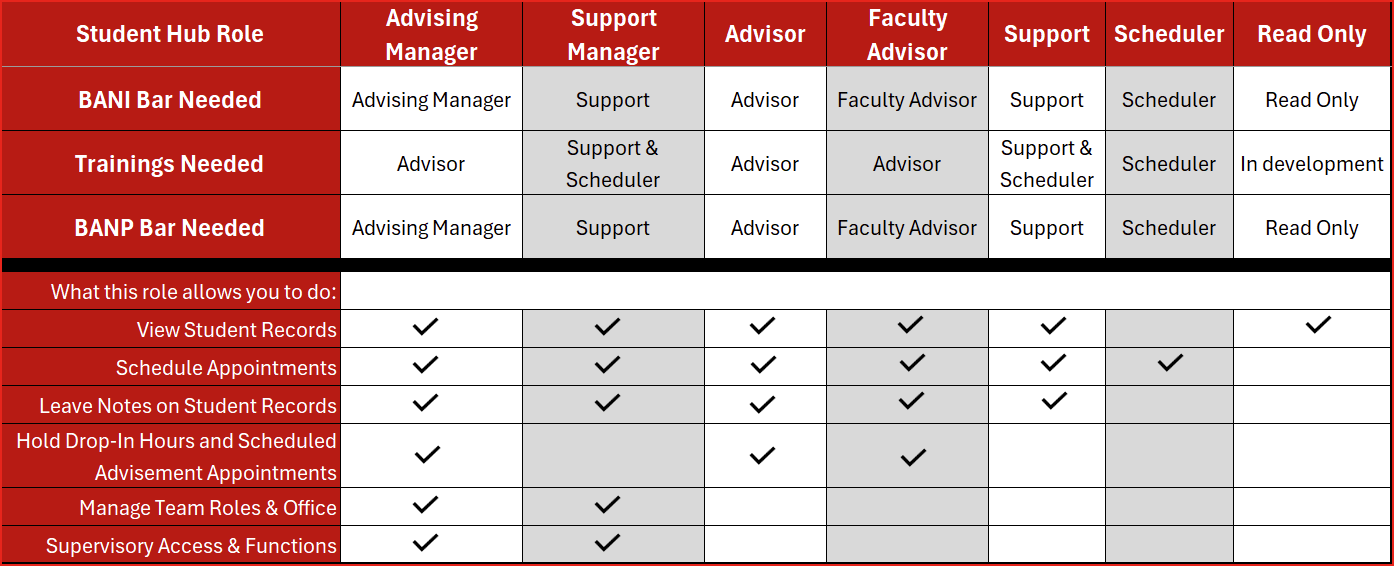
- Select your role: Use the information below or this chart to determine your role in Student Hub - only one employee BAR role per user. If you are not certain about your role, reach out to shconnect@unm.edu.
- Advising Manager: for managers and supervisors of advisement units who also need to be able to meet with students during appointments or drop-ins. This role requires completion of UNM Advisor training in addition to Student Hub training.
- Support Manager: for managers and supervisors of advisement units who do not need to be able meet with students during appointments or drop-ins.
- Advisor: for advisors who meet with students during appointments and drop-ins. This role requires completion of UNM Advisor training in addition to Student Hub training.
- Faculty Advisor: for faculty who serve as advisors within their department or for a specific cohort of students and use the system to schedule advisement meetings and document advising notes.
- Support: for staff, faculty, and student employees who support advisement through notes on students records and scheduling advisement meetings.
- Scheduler: for staff and student employees who support advisement through scheduling advisement meetings but do not leave notes on student records.
- Submit your Banner Authorization Request (BAR) for the training environment by submitting a BANI BAR at bar.unm.edu/intg.cfm. Note, this is only for the training environment and not to the live system - a second BAR is required after training. HSC employees should submit using their Salud credentials.
- Use the Search Roles tab to look for "Hub" to find your role.
- In your reason, be sure to include your advising unit/office, your position in that office, and the types of tasks you will be performing in Student Hub.
- When you submit your BANI BAR, your supervisor must submit an updated workbook to shconnect@unm.edu to have you created in the system, added to the correct office, and connected to the right students and topics.
- These should be submitted at approximately the same time. BAR requests and workbooks that are not submitted within two weeks of each other will be denied/returned.
- These should be submitted at approximately the same time. BAR requests and workbooks that are not submitted within two weeks of each other will be denied/returned.
- Once your BANI BAR is approved and your supervisor has submitted your workbook, you will be contacted within three business days to schedule a training.
- After completing your training, request access to the live system by submitting a BANP BAR at bar.unm.edu (note: this is a different URL than the BAR for testing access). This is the BAR to get access to the live system.
- Use the Search Roles tab to look for "Hub" to find your role.
- In your reason, be sure to include your advising unit/office, your position in that office, and the types of tasks you will be performing in Student Hub.
- When your BAR is approved, it still takes some time for your access to be built in Student Hub. Your supervisor will be notified when you are in the system and can begin using it. Please allow two business days from the time your BAR is approved for your access to be created.